
Online Headphone Test
Test your headphone left, right, and stereo audio channels online instantly.
Welcome to the ultimate free Left/Right stereo headphone testing tool online! Use this tool to verify that your left and right audio channels are working correctly, identify the correct left and right sides of unlabeled headphones, test stereo separation, check channel balance, troubleshoot silent earbuds, or ensure your gaming headset, speakers, or studio monitors deliver accurate stereo sound—all directly in your browser with no uploads, downloads or installation required.
Why Use the Headset Guides Tool?
Testing your headphones or other audio equipment is quick and easy with our free Left/Right Stereo Headphone Testing tool. There's no need to download bulky diagnostic software, navigate ad-cluttered websites, or relying on confusing video streams with inaccurate panning.
As a dedicated audio publisher, we built this tool with accuracy, simplicity, and reliability in mind. Using the same attention to detail we apply to our hands-on product reviews and comparisons, it helps casual listeners, gamers, content creators, and audiophiles quickly verify left and right audio channels, stereo separation, and channel balance—all within seconds.
⚡ 100% Free & No Setup
Runs natively in any web browser via HTML5 & Web Audio API—no app downloads, plugins, or account registration required.
🔊 Pure Uncompressed Signals
Generates clean sine waves, true-stereo signals, and uncompressed voice cues for 100% accurate channel separation.
🛠️ All-in-One Diagnostic Suite
Access isolated Left/Right toggles, stereo balance checks, frequency sweeps, and live gain controls in one simple interface.
👁️ Real-Time Visual Feedback
Our interactive headphone graphic lights up in sync with audio output, giving instant visual confirmation of active channels.
🔒 Privacy-First & Local
All signal generation happens locally inside your browser. We never record, track, or stream your system audio to external servers.
📱 Mobile & Desktop Ready
Fully responsive and optimized across Windows, macOS, Chromebooks, Linux, iOS (iPhone/iPad), and Android devices.
What Is a Left/Right Stereo Headphone Test?
A stereo channel test is a quick diagnostic procedure designed to verify that your headphones, earbuds, or speakers are reproducing Left and Right audio signals independently without crosstalk or channel inversion. Stereo sound relies on two isolated audio channels to recreate spatial depth, soundstage accuracy, and true positional audio direction. If your channels are inverted, mixed into mono, or imbalanced, directional cues in movies, competitive gaming, and studio recordings will feel disorienting, flat, and unnatural.
ʟ Left Channel Test
The test tone or audio cue is sent strictly through the left signal path. Sound should play exclusively inside your left earcup or earbud, leaving the right side completely silent to confirm true channel isolation.
ʀ Right Channel Test
The test signal routes exclusively through the right audio driver. Audio should be audible only on your right side while the left earcup remains silent, verifying that wiring and software settings are not inverted.
📼 Both Channel (Stereo) Test
Audio sweeps smoothly across the entire soundstage from left to right, or plays simultaneously in both ears. This step confirms seamless dynamic panning, centered vocal imaging, and equal volume balance across drivers.
Supported Audio Gear & Devices
This tool works with any audio output device connected to your phone, tablet, computer, or audio interface. Because the test runs directly through your system's main sound output, it supports every major category of headphones and other personal and professional audio hardware:
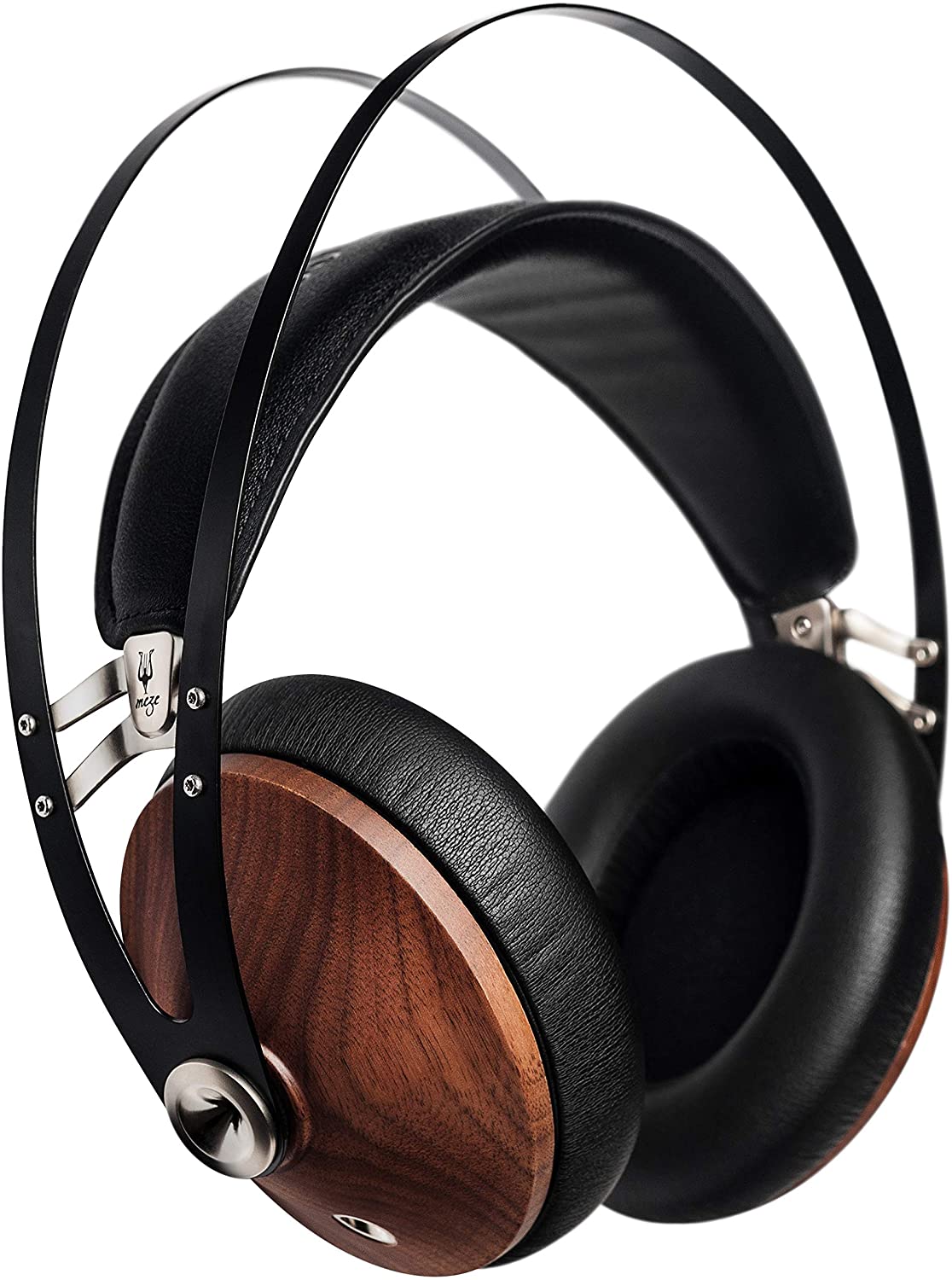
🎧 Over-Ear & On-Ear Headphones
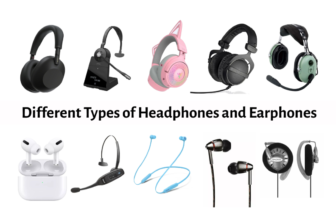
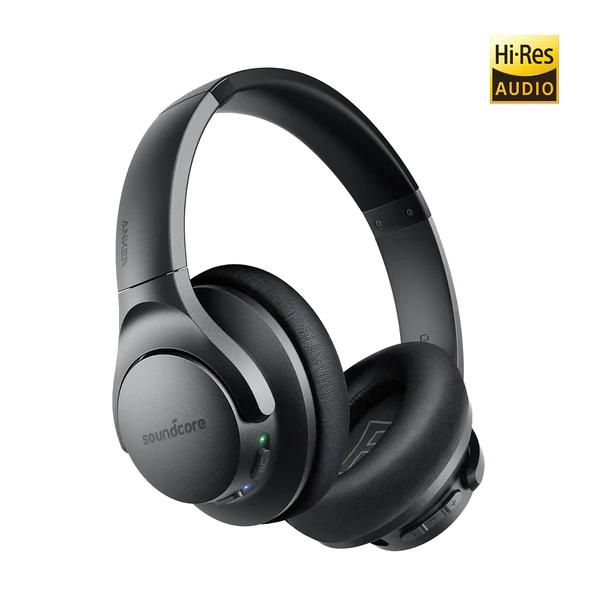
Closed-back, open-back, wireless Bluetooth, and wired studio monitoring headphones (e.g., Audio-Technica, Sennheiser, Sony, Bose).
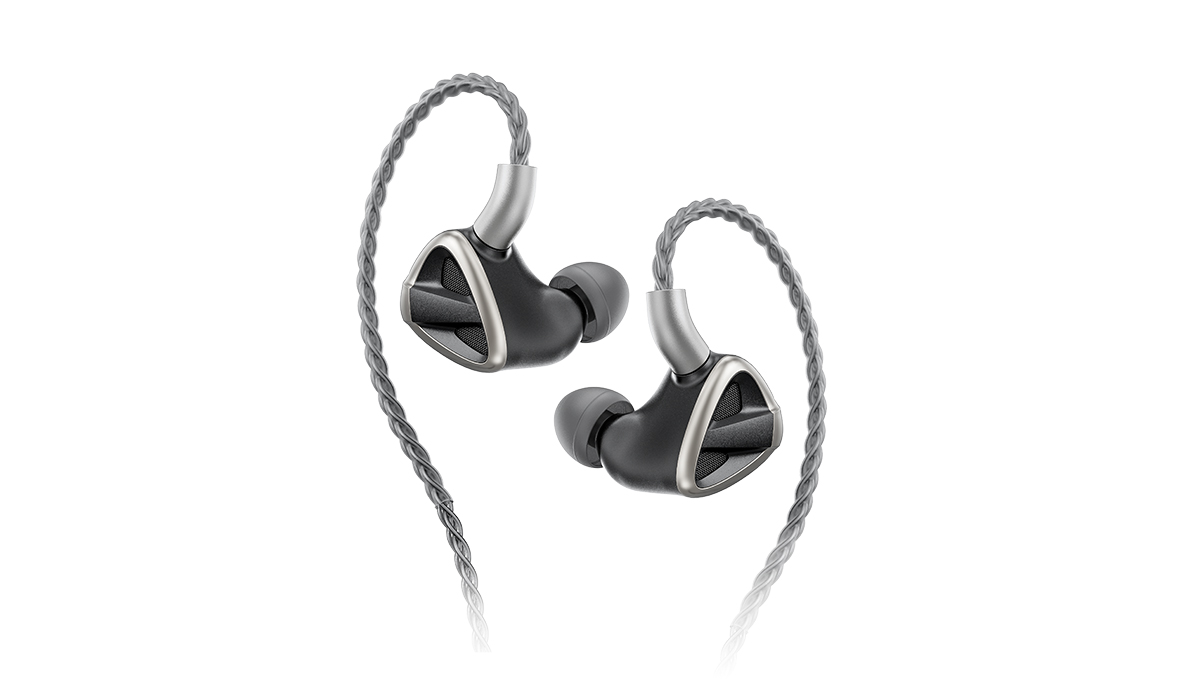
🎼 In-Ear Monitors (IEMs)
Multi-driver IEMs, balanced-armature monitors, and audiophile wired earphones used by musicians and sound engineers.
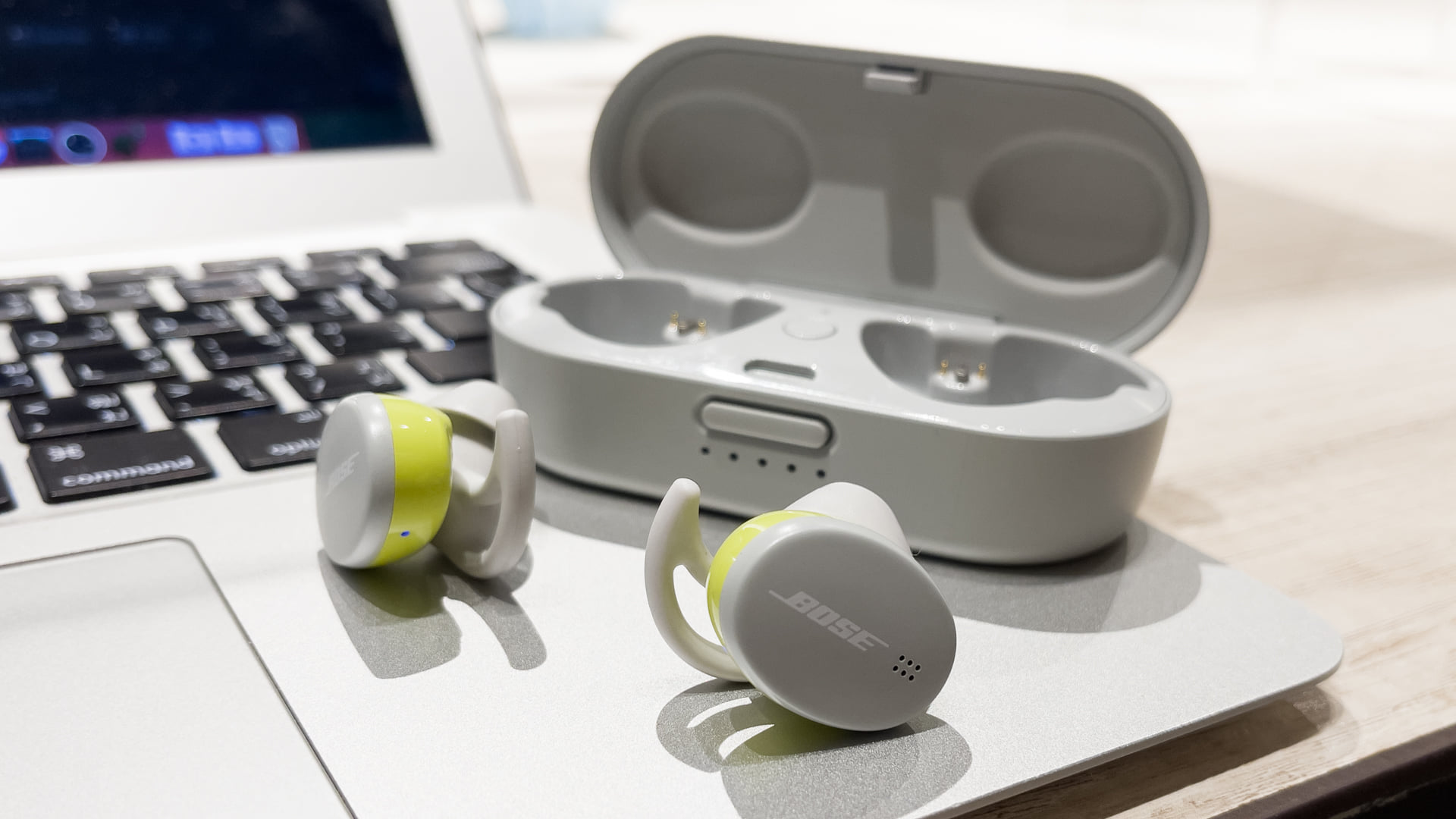
📶 True Wireless Earbuds (TWS)
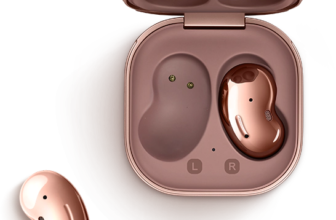
Apple AirPods, Samsung Galaxy Buds, Sony WF series, Jabra, and all Bluetooth 5.0+ wireless earbuds.
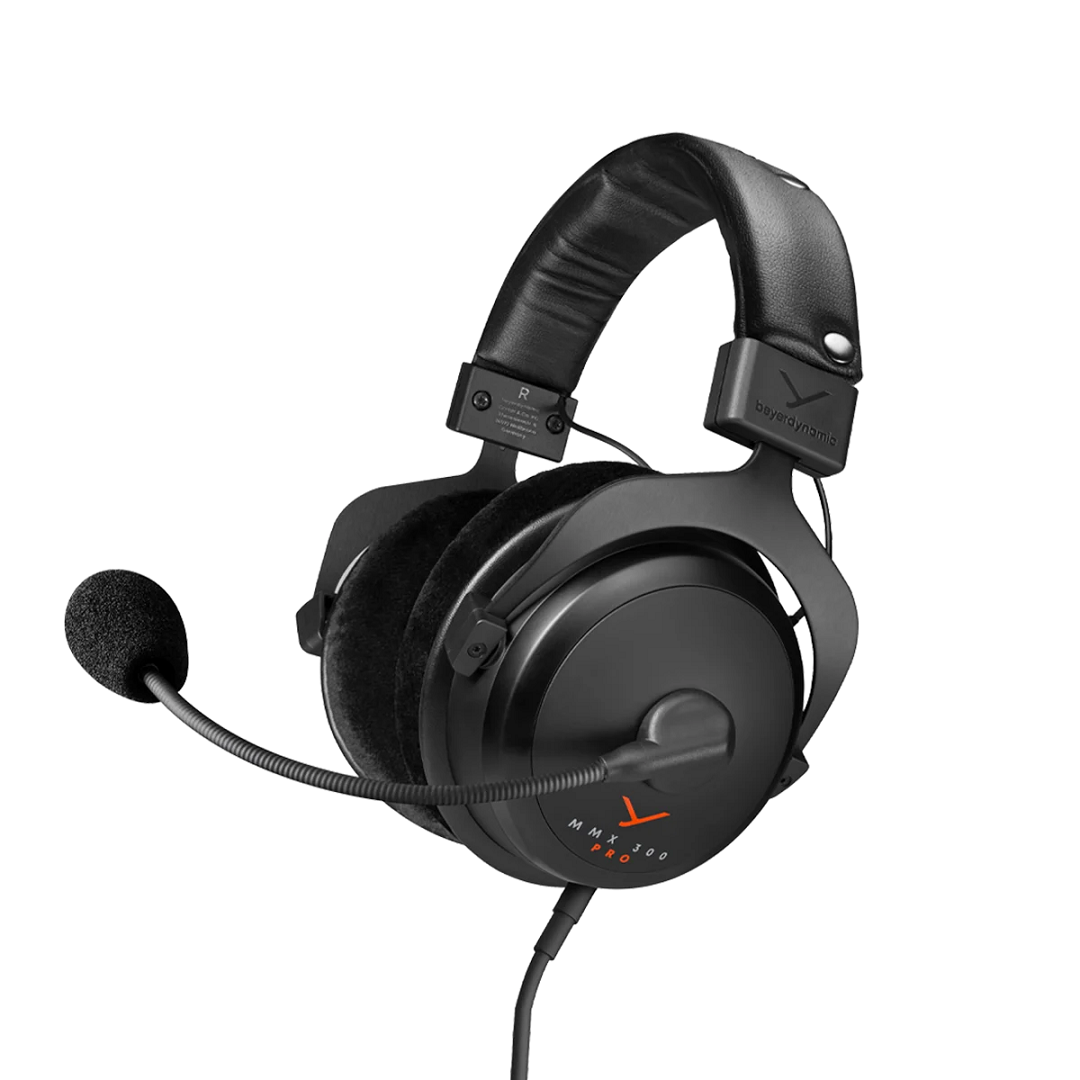
🎮 Gaming Headsets
USB, 3.5mm, and 2.4GHz wireless gaming headsets with surround sound or 2.0 stereo configurations (e.g., HyperX, SteelSeries, Razer, Logitech).
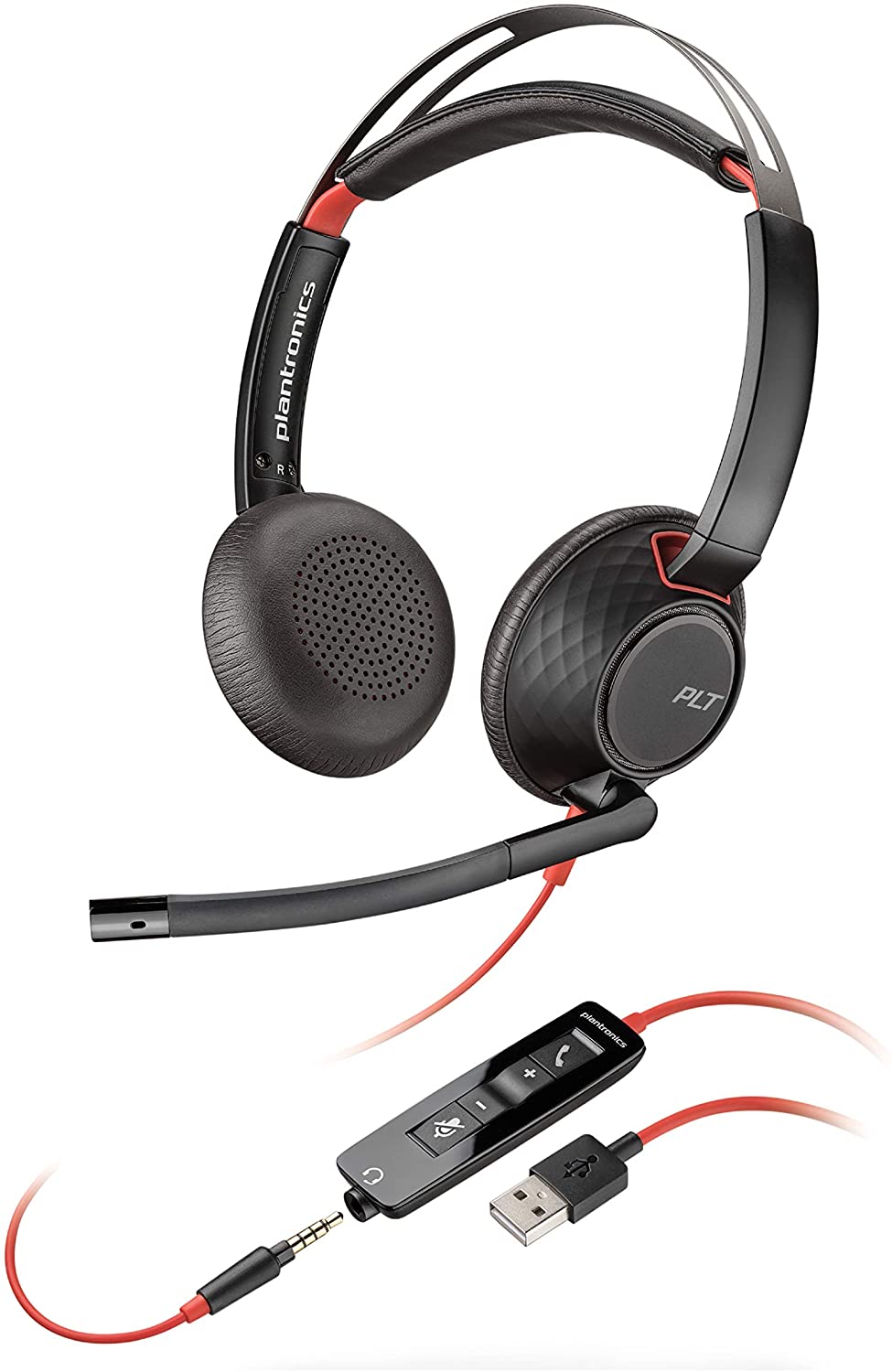
🔌 Wired Earphones & Earbuds
Classic 3.5mm AUX analog jacks, Apple Lightning, and USB-C digital wired earphones.
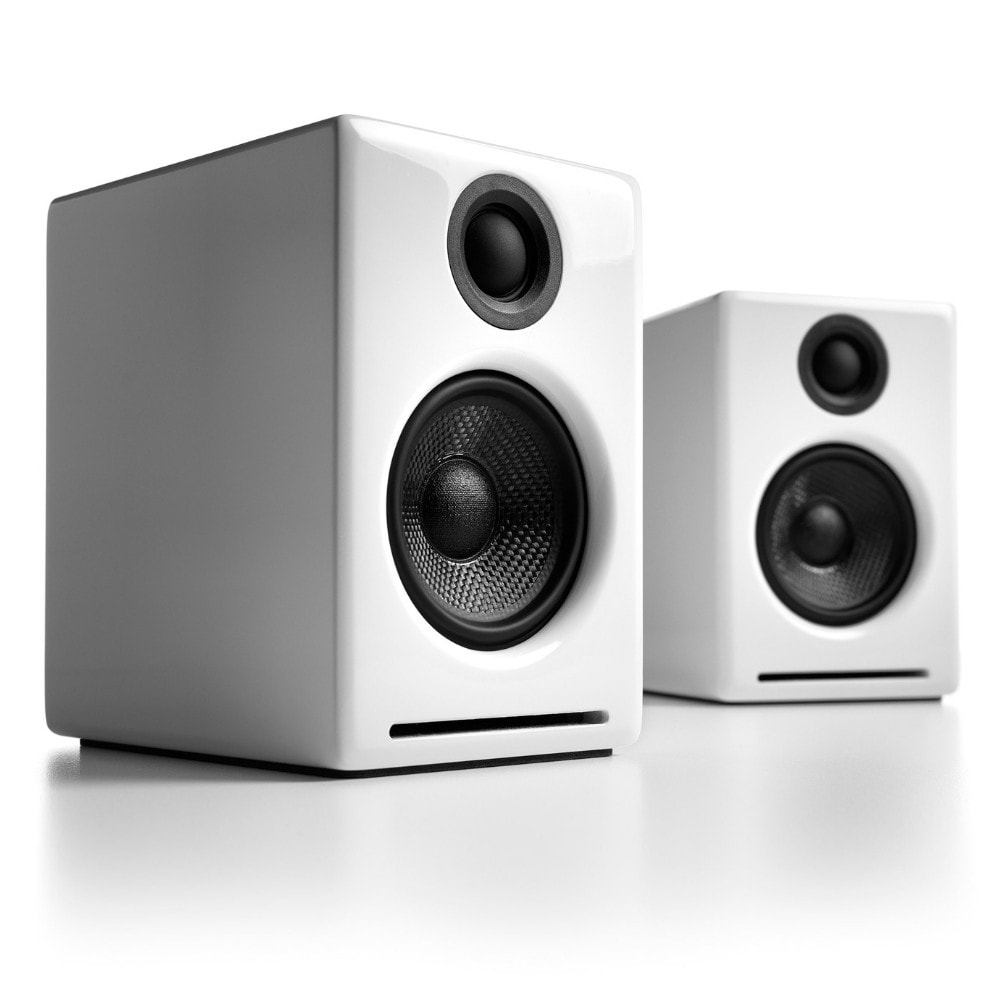
🔊 Speakers & Studio Monitors
Powered desktop speakers, active studio monitors, soundbars, and external USB DAC/Amp setups.
How & Why This Tool Is Helpful for Users
Engineered for casual listeners, competitive gamers, content creators, and audio professionals. Explore 36 core diagnostic use cases powered by pure browser signal processing.
1. Verify Left & Right Channels
Confirms that left audio plays strictly through the left ear and right audio through the right ear, ensuring correct channel orientation.
2. Check Stereo Separation
Verifies that the left and right channels remain completely independent, delivering true stereo imaging instead of blended mono sound.
3. Detect Swapped Channels
Quickly identifies whether left and right signals are inverted due to reversed adapters, incorrect cable pinouts, or software bugs.
4. Confirm Both Drivers Work
Checks that both transducer drivers reproduce full-frequency audio cleanly without dead channels or complete signal loss.
5. Test Audio Balance
Helps determine whether one ear cup sounds noticeably quieter than the other, pinpointing driver degradation or OS balance shifts.
6. Identify Faulty Headphones
Exposes underlying hardware defects caused by blown voice coils, fractured internal soldering, or worn cable shielding.
7. Troubleshoot Bluetooth Problems
Verifies proper stereo transmission after wireless connection drops, Bluetooth codec misconfigurations, or packet desync.
8. Verify Wireless Earbud Pairing
Ensures left and right TWS earbuds are properly synchronized to master audio rather than operating in single-earbud mode.
9. Check After Firmware Updates
Confirms that manufacturer firmware updates haven't altered custom EQ presets, spatial audio routines, or channel mappings.
10. Verify Computer Audio Setup
Tests Windows, macOS, or Linux audio subsystems after updating Realtek drivers, switching sound servers, or altering MIDI settings.
11. Test Smartphone Audio Output
Checks whether iOS or Android devices output uncompressed stereo through physical connectors, dongles, or wireless endpoints.
12. Verify DACs & Audio Interfaces
Ensures USB DACs, headphone amplifiers, and studio audio interfaces send accurate signal paths to designated outputs.
13. Test Gaming Headsets
Confirms sharp, accurate left/right directional response needed for binaural positioning in spatial audio engines.
14. Improve Positional Audio in Games
Ensures enemy footsteps, gunfire, vehicle passes, and spell cues originate from their exact 3D coordinate space.
15. Experience Movies as Intended
Verifies film dialogue panning, atmospheric soundscapes, and off-screen cues play according to the sound designer's master mix.
16. Check Music Production Equipment
Allows sound engineers and producers to verify pristine stereo bus monitoring inside DAWs before tracking or mixing sessions.
17. Test Podcast Editing
Confirms host and guest vocal positions, intro music panning, and sound effects are correctly placed in the stereo field.
18. Verify Video Editing Projects
Ensures video exports from Premiere, Final Cut, or DaVinci Resolve preserve intended audio track routing and stereo separation.
19. Test Streaming Setup
Checks OBS audio routing and mic monitoring setups before going live on platforms like YouTube, Twitch, or Discord.
20. Verify Accessibility Settings
Detects whether OS accessibility options like Mono Audio toggle or hearing balance offsets are inadvertently altering sound.
21. Detect Mono Playback
Instantly reveals whether your system audio stack is flattening stereo signals into identical single-channel mono output.
22. Check Audio Adapters
Tests USB-C dongles, Lightning adapters, Y-splitters, and 3.5mm extensions for correct wiring and signal transmission.
23. Diagnose Loose Connections
Identifies dirty audio jacks, loose TRRS plugs, or partially seated connectors that cut off the right-channel ring contact.
24. Verify Speaker Wiring
Confirms that powered desktop monitor cables or passive speaker wire terminals are routed to their matching left/right outputs.
25. Test Home Theater Stereo Setup
Validates front left and right channel assignments on AV receivers or soundbar setups prior to full system room calibration.
26. Inspect New Headphones
Evaluates newly unboxed headphones instantly to confirm absence of factory wiring defects or driver imbalance out of the box.
27. Confirm Successful Repairs
Tests DIY repairs, re-soldered 3.5mm jacks, or replaced cable assemblies to ensure proper grounding and full stereo integrity.
28. Diagnose Software Audio Issues
Isolates whether sound issues stem from third-party equalizer software, spatial audio plugins, or OS audio enhancements.
29. Compare Multiple Headphones
Enables quick A/B testing across gear to compare channel width, soundstage depth, and baseline frequency consistency.
30. Learn How Stereo Audio Works
Serves as a clear educational tool for beginners to experience acoustic panning, phase alignment, and directional imaging.
31. Speed Up Audio Troubleshooting
Saves time by pinpointing hardware vs. software faults in seconds without digging through complex settings menus.
32. Works on Nearly Every Device
Compatible across Windows, macOS, Linux, iOS, Android, Chromebooks, and smart devices with modern web browsers.
33. No Installation Required
Runs 100% client-side via the HTML5 Web Audio API—no executable downloads, browser extensions, or setup required.
34. Completely Free to Use
Delivers unlimited diagnostic access without paywalls, sign-up forms, user tracking, or premium tier restrictions.
35. Gain Confidence in Your Audio Setup
Provides full peace of mind that your playback chain, physical wiring, and sound settings are operating at peak accuracy.
36. Identify L/R Unlabeled Headphones
Instantly reveals correct physical ear orientation for vintage or minimalist headphones with faded, missing, or tiny L/R labels.
How To Use Left Right Stereo Headphone Testing Tool (Step-by-Step Guide)
Follow these four quick steps to accurately diagnose channel orientation, stereo separation, and driver balance in under 30 seconds.
Detailed Breakdown of Online Headphone Test Left Right Stereo Checker Features & Audio Tracks
Our headphone diagnostic testing suite gives you total control over your audio setup by pairing real-time Web Audio API sound generators with specialized audio tracks.
Category A: Quick Channel & Voice Checks
Tracks 1–31. Voice Prompt (Spoken Channel)
Explicit voice prompts announcing active orientation.
2. Pure Tone (440 Hz Reference)
Concert pitch A4 sine wave for tuning and simple balance.
3. Sine Wave Tone (1,000 Hz Reference)
Standard 1 kHz calibration pitch for amplitude testing.
Category B: Frequency Sweeps
Tracks 4–84. Low Frequency (Bass Sweep 60Hz - 180Hz)
Sweeps low frequencies to check sub-bass capability and speaker rattling.
5. Medium Frequency (Mids Sweep 500Hz - 2kHz)
Target mid-range frequencies where human speech resides.
6. High Frequency (Treble Sweep 2kHz - 8kHz)
Upper treble sweep to test clarity and harshness.
7. Highest Frequency Sweep (8 kHz – 20 kHz)
Ultra-high frequency sweep up to top human hearing thresholds.
8. Ultrasonic Tone (20,000 Hz)
20 kHz pitch testing hardware limits.
Category C: Noise & Sample Audio
Tracks 9–129. Pink Noise (Acoustic Calibration)
Synthesized pink noise for equal-energy frequency distribution.
10. White Noise Burst
Full-spectrum white noise generated live.
11. Studio Chime (Bell Harmonics)
Synthesized harmonic chime with decay.
12. Aqua - Barbie Girl (Full Song)
Stereo musical test track.
Troubleshooting Tips
If your headphone channel test revealed an issue where one side is quiet, crackling, or completely silent, run through this quick checklist:
Frequently Asked Questions (FAQs)
Find answers to common questions about stereo audio testing, channel imbalance, hardware troubleshooting, and spatial playback settings.
1. How do I test if my left and right headphone channels are working?
You can perform a quick channel test using an interactive web-based utility. Simply select a voice prompt track and click Play Left followed by Play Right. If the "Left" voice cue plays through your right ear cup or vice versa, your stereo channels are inverted. If one side produces complete silence or crackling audio, you have an active channel balance or hardware connection issue.
2. Why is sound only coming out of one side of my headphones?
Audio coming from only one side is usually caused by a loose 3.5mm jack that hasn't been pushed completely into the port, or lint and debris buildup inside your device's audio jack preventing proper ring contact. Other common culprits include an unbalanced system volume slider, internal frayed wiring near the cable strain relief, or true wireless earbuds that have failed to synchronize with each other before connecting.
3. How do I fix unbalanced left and right audio on Windows 11/10?
To balance your stereo output on Windows, navigate to Settings → System → Sound and click on your active playback device to open its properties. Under the Output Settings section, locate the Left Channel and Right Channel balance sliders and adjust them so both values are completely equal, such as setting both channels to 50% or 100%.
4. Why do my headphones sound reversed (Left sound in Right ear)?
Reversed audio channels can happen if you are wearing your headset backward, so always verify the L and R markings on the ear cups. It can also occur if detachable AUX cables are plugged into the wrong sides, if third-party virtual surround software misroutes spatial channels, or in rare cases, if a factory manufacturing error mislabeled the ear cup print or wired the internal drivers backward during assembly.
5. What is Mono Audio, and should I keep it turned on or off?
Mono Audio combines separate left and right channels into a single unified sound signal that plays identically through both ears. You should keep Mono Audio turned off for music, movies, and gaming so you can enjoy rich stereo imaging and directional sound, and only turn it on if you have single-sided hearing loss or are listening through a single earbud.
6. Can a web-based audio test damage my headphones or earbuds?
No, using a standard browser-based testing tool will not damage your hardware as long as you keep your system volume set to a moderate level around 30% to 50% before starting. However, you should avoid playing continuous high-frequency sine sweeps or maximum-volume noise bursts for extended periods, as excessive signal power can strain delicate speaker driver diaphragms.
7. How do I know if my headphone drivers are damaged or blown out?
You can detect physical driver damage by selecting the Frequency Sine Wave Tones or Bass Sweep (60Hz–180Hz) track in the test app. If you hear continuous physical buzzing, high-pitched ringing, rattling, or crackling at normal listening volumes, the physical driver diaphragm may be torn, warped, or loose inside the ear cup.
8. Why does one side of my wireless earbuds sound quieter than the other?
Volume imbalance between true wireless earbuds is most frequently caused by earwax, dust, or moisture clogging the microscopic acoustic speaker mesh on the quieter earbud. Cleaning the grille gently with a dry cotton swab usually restores volume, but if the issue persists, resetting the earbuds inside their charging case will resolve any lingering wireless firmware sync errors.
9. Why is my Bluetooth headset playing in low quality or mono?
When a Bluetooth headset activates its built-in microphone for voice calls or communications apps like Discord and Zoom, operating systems often automatically switch the Bluetooth connection from high-fidelity A2DP Stereo Mode to a low-bandwidth Hands-Free / Headset Profile (HFP). Disabling the hands-free communications profile in your operating system's sound settings forces your headset back into high-quality stereo playback.
10. Do I need to download software to perform a proper audio channel test?
No, modern browser-based testing tools utilize standard HTML5 and the Web Audio API to generate and process uncompressed audio signals locally inside your web browser. This setup provides studio-grade channel separation, phase checks, and precise frequency sweeps instantly on any computer or mobile device without requiring software installations, plugins, or driver updates.
Audio Attribution Notice
The Aqua – Barbie Girl audio sample included in this testing tool is used strictly for non-commercial, educational, and diagnostic testing purposes under Fair Use. All rights, title, and copyright to the composition, sound recording, and musical arrangement remain the exclusive property of Aqua, MCA Records / Universal Music Group (UMG), and their respective songwriters and publishers. No copyright infringement is intended.